Non-Taxable Report
Use the Non-Taxable report to review policies that were allocated to non-taxable areas. These records should be reviewed before the allocation job is approved.
In Allocator, non-taxable areas may use jurisdiction code 9998. Review these records to confirm that the policy was correctly assigned to a non-taxable jurisdiction.

Open the Non-Taxable Report
After the file finishes processing, click inside the job tile to open the processed job.
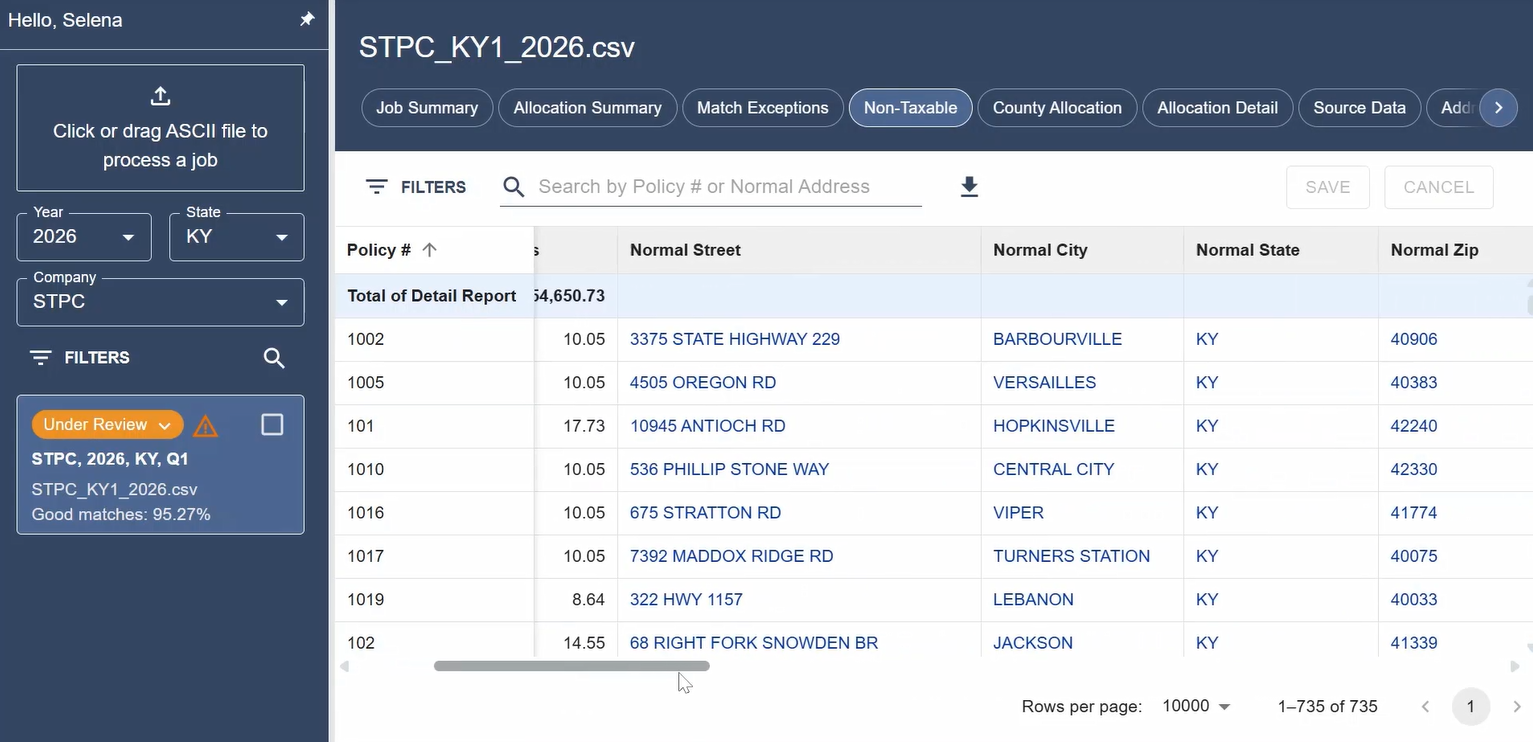
Select the Non-Taxable report from the report tabs at the top of the report area.
Review Non-Taxable Records
The Non-Taxable report lists policies assigned to non-taxable areas.
Review the records in this report to determine whether the non-taxable allocation appears correct.
The report may include information such as:
- Policy number
- Source premiums
- Premiums
- Normal address
- Matched address
- Jurisdiction
- Jurisdiction code
- County
- Missing address information
- Miscellaneous fields
Look for Records That May Need Correction
Review the Non-Taxable report for records that may need additional attention.
A record may need review if:
- The address includes a PO Box, Rural Route, or other non-physical address.
- The matched address is blank or incomplete.
- The address appears to be in a taxable city or jurisdiction.
- Required address information is missing.
- The policy appears on the Non-Taxable report unexpectedly.
Use the normal address, matched address, jurisdiction, county, and match information to decide whether the record should remain non-taxable or be corrected.
Filter or Search the Report
Use the report tools to narrow the Non-Taxable report when needed.
You can search for a specific policy or address. You can also filter by columns such as jurisdiction code, match code, county, city, or missing address information.
For example, you may filter the report to show records assigned to jurisdiction code 9998 or records with a specific match code.
Correct an Address from the Non-Taxable Report
If a non-taxable record needs correction, change the job status to Under Review.
Editable address fields appear as blue text. After you make a change, the edited text appears in red.
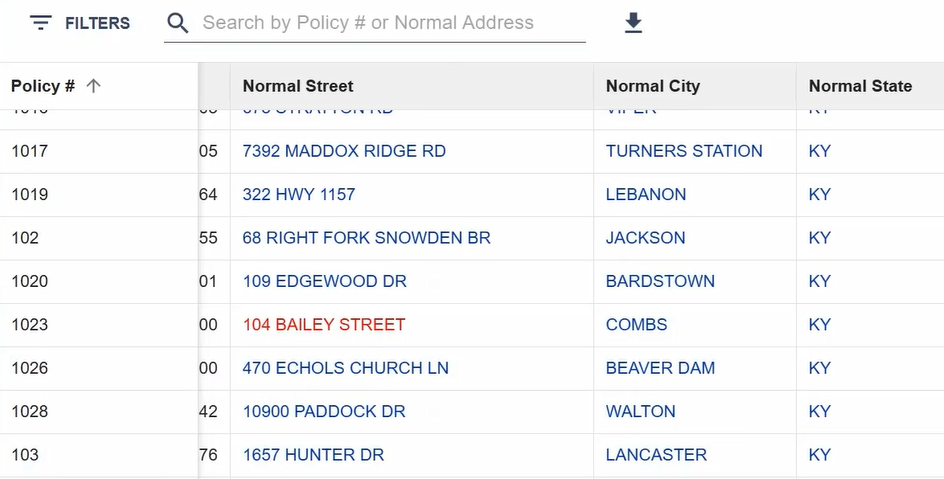
Update the address information and save the correction.
When you save the correction, Allocator reallocates the policy based on the updated address information.
Review the Corrected Result
After saving the correction, review the record again.
The corrected record may remain non-taxable if the updated address is still located in a non-taxable area. If the updated address is taxable, the allocation result may change.
Review the matched address, jurisdiction, county, and premium information to confirm the result.
Review the Address Corrections Report
After correcting an address, open the Address Corrections report.
Use the Address Corrections report to confirm:
- Which address was changed
- What the corrected address is
- Who made the correction
- When the correction was made
When No Correction Is Needed
If a record is correctly assigned to a non-taxable jurisdiction, no correction is needed.
Continue reviewing the remaining non-taxable records until you are satisfied that the results are correct.
Next Step
After reviewing non-taxable allocations and making any needed corrections, continue reviewing the remaining reports. When the reports are complete and accurate, approve the allocation job.
Related Articles
- Allocator Reports
- Correcting Addresses in Allocator
- Report Tools: Search, Filter, Sort, and Manage Columns
- Approve an Allocation Job
- Download Allocator Reports and Export Files
- How do I process an Allocator file?